











This page explains how existing account holders sign in to Bongobongo in Zambia, what credentials the form expects, and what to do when access fails. If you registered earlier and only need to reach your balance, bet history or a withdrawal request, signing in is the single step that unlocks all of it.
Without an active session the site works in browse-only mode: you can look at odds and game lobbies, but you cannot place a bet, deposit, or manage anything tied to your profile. A completed Bongobongo login also keeps your bet slip, transaction records and personal settings attached to one profile instead of scattered guest sessions.
How to Login
Start from the official website rather than a link forwarded in a chat group. Open the Bongobongo Zambia site and look for the sign-in control in the top-right corner of the header; on narrow screens it usually sits behind the menu icon. Tapping it opens a short form with two fields and a submit button.
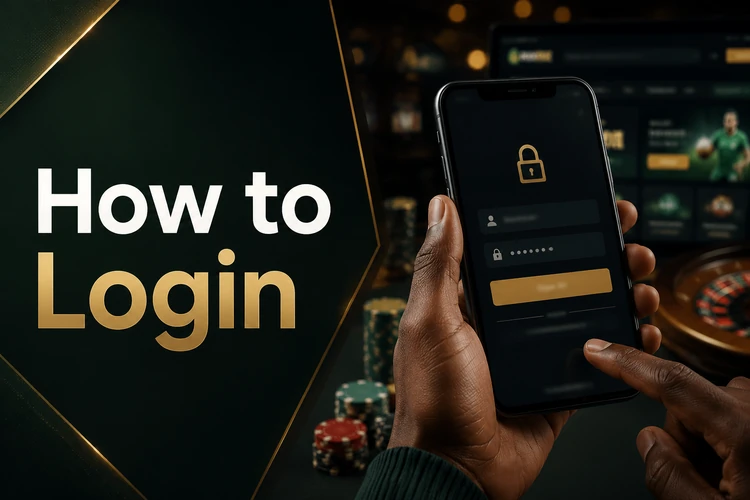
In the first field enter the identifier you chose at registration - normally the Zambian mobile number linked to the account, written in the same format you used when you signed up. Some players registered with an email address instead; use whichever one the account was created with. In the second field type your password exactly as you set it, including capital letters and any symbols. Password fields are case sensitive, so a stray capital at the start is a common reason a correct password is rejected.
- Step 1: Open the official site in your browser or the mobile app.
- Step 2: Tap the sign-in button in the header to open the form.
- Step 3: Enter your registered phone number or email address.
- Step 4: Type your password, checking capitals and spacing.
- Step 5: Submit the form and wait for the page to reload.
- Step 6: Check the header shows your balance, then open your account area.
Login Requirements
Two pieces of information are needed and nothing more: the username you registered with and your password. The username is not a nickname you invent at sign-in - it is the phone number or email already stored on the account. If you have changed your phone number since registering, the old number remains the login identifier until support updates the record.
Passwords should be long enough to resist guessing. A practical target is at least eight characters mixing upper and lower case letters with digits, avoiding your birth year, your name, or a repeated sequence. Browsers often add a trailing space when you paste a password from a notes app, and that invisible character is enough to fail the check. Type it manually if a paste keeps failing. Only registered users can complete the form; if you have never created a profile, no combination of details will work until registration is finished.
Forgot Password
A forgotten password does not mean a lost account. Open the sign-in form and use the «Forgot password?» link below the fields. You will be asked for the phone number or email tied to the profile so the system knows which account to work with.
A reset code or reset link is then sent to that contact. Enter the code on the page, choose a new password, and confirm it a second time so a typo cannot lock you out again. The old password stops working the moment the new one is saved, so update it anywhere you had it stored. Reset messages can take a minute to arrive, and they only reach the contact details on file - this is the identity check, which is why the number you registered with matters. If nothing arrives, or the contact details are out of date, the support channels are the route to recovering access.
Common Login Problems
Most failed attempts come down to a handful of causes. An incorrect password is the first suspect, followed by using a different phone number from the one on the account. Type both slowly and check the country code format before assuming something is broken.
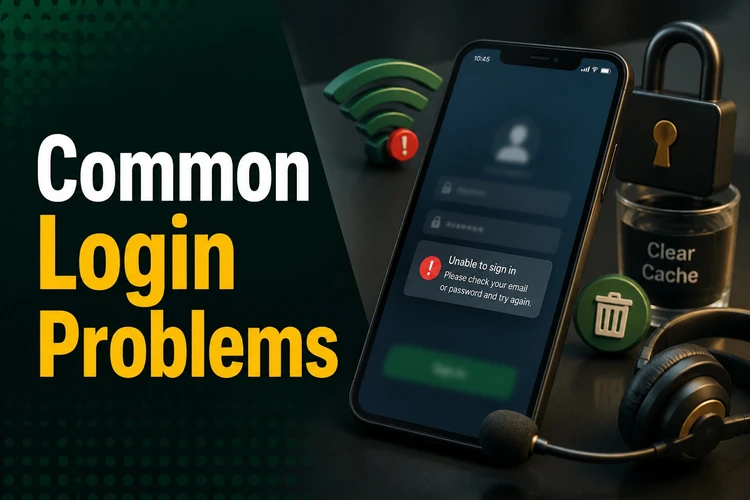
Other cases are technical. A weak or dropped mobile data connection can interrupt the request halfway, leaving the page seemingly frozen - switch between mobile data and Wi-Fi and try again. An old cached version of the page can also produce errors after a site update; clearing your browser cache and cookies, or opening the site in a private window, usually resolves it. Outdated browsers sometimes fail on the security layer, so keep yours updated. If the form reports that the account is restricted or blocked, no amount of retrying will help - that status has to be reviewed by the operator, and repeated attempts may extend a temporary lock.
Mobile Login
The sign-in process on a phone is identical to the desktop one, just compressed. In a mobile browser the header collapses into a menu, so the button may need one extra tap to reach. Android users who prefer a dedicated shortcut can sign in through the Bongobongo mobile app, which keeps the session running between visits so you do not retype credentials every time.
Session persistence is convenient but it depends on your device staying private. Set a screen lock, and avoid letting a shared handset remember your password. If you hand your phone to someone else regularly, sign out first. Push notifications and saved sessions mean that anyone holding an unlocked device holds your account.
Login Security
Use a password that exists nowhere else - not on your email, not on social media. Nobody from Bongobongo will ask for it, by phone, message or email, so any such request is a scam attempt regardless of how official it looks. Staff can help you reset a password; they never need to see it.
On a public computer or an internet cafe machine, decline any offer to save credentials and log out deliberately when you finish rather than just closing the tab. Check the address bar before typing anything, since copycat pages depend on players not looking. Reviewing your bet history and transactions after each session is a quick way to spot activity you did not authorise. Betting is for adults only, 18+, and the responsible gambling tools are worth reading before you deposit.
FAQ
Open the official website or the mobile app, tap the sign-in button in the header, and enter the phone number or email address you registered with along with your password. Submit the form and the page reloads with your balance visible in the header. From there you can open your account area, deposit, or place a bet.
Use the «Forgot password?» link under the sign-in fields and supply the phone number or email linked to your profile. A reset code or link is sent to that contact, which confirms your identity. Enter the code, set a new password and confirm it. The previous password stops working immediately.
Yes. The Bongobongo login works in any mobile browser and in the Android app, with the same credentials as on desktop. On small screens the sign-in control may sit inside the collapsed menu. The app can keep you signed in between visits, so protect your phone with a screen lock.
The usual causes are a mistyped password, using a phone number different from the registered one, or an unstable internet connection. Clearing your browser cache or opening the site in a private window fixes errors caused by an outdated cached page. If a message says the account is restricted, contact support instead of retrying.
Only two: the identifier stored on your account, which is normally your Zambian mobile number or your email address, and your password. Passwords are case sensitive, so capitals matter. If you have changed your phone number since registering, the original one remains your login until the record is updated.
Security depends partly on your own habits. Use a password you do not reuse anywhere else, never share it with anyone claiming to be staff, and sign out fully after using a shared or public device. Check your transaction and bet history regularly so unfamiliar activity can be reported quickly.